Where to find saved testing sessions:
- From the Start page, click on the MAP Growth tab.
- Go to Manage Test Sessions under Testing.
- Select Saved Testing Sessions.
- A list of sessions created by you that were last modified in the current academic term appears.
How to find sessions created by another user:
If you are a School Proctor, you can view testing sessions created by yourself, or by a District Proctor. You cannot view testing sessions created by other School Proctors.
District Proctors can view testing sessions created by any proctor in your organization.
To find a session created by another proctor:
- Under Saved Testing Sessions, clear the Created By box.
- A menu will appear beneath the Created By box.
- To view all saved sessions, select All Proctors.
- To view sessions created by a specific user, start typing the user's last name.
- Select the user from the menu.
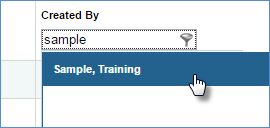
- Sessions created by that user and last modified in the selected term appear.
How to find sessions created in another testing term:
- Under Saved Testing Sessions, select the Term Last Used/Modified menu.
- Select the term. Testing sessions are only saved for the current and previous 2 terms. See Can I create testing sessions in advance?
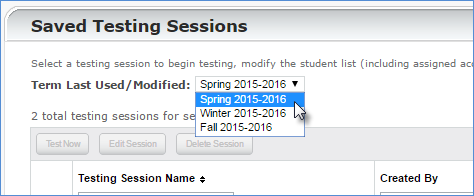
- The sessions last modified in the selected term and created by the selected user appear.
- Optionally, you can edit and save the session to force the session to appear by default for the rest of the term. Note that this is not required in order to use the session.
- Select the session.
- Select Edit Session.
- Optionally, make any necessary changes.
- Select Save Session, below the list of students.
- Optionally, change the session name.
- Click Save and Exit.
Resuming a suspended test started in a different testing session:
A suspended test can be resumed and completed in any test session. When a test is suspended, it follows the student and not the test session. A student can be listed in multiple test sessions, but can actively test in only one session at a time.
To find students with suspended tests, use the Test History Search when creating a test session:
- Log into in the MAP Administration and Reporting Center (MARC).
- Select MAP Growth tab > Manage Test Sessions
- Click Find Students to Test.
- On the following screen, select the Test History Search tab.
- Select the appropriate search filters and check the Suspended Test box under Testing Status to identify those students with suspended tests. Click Search when ready.
- The students can then be added to the test session by selecting Add Students.
No saved sessions appear no matter which filters you use
There are several possible causes of this issue. If you have accidentally deleted a test session, see What happens if I delete a test session? Can it be recovered?
To resolve this issue:
- Check that you are using the correct search filters, including the Created By and Term Last Used/Modified fields.
- Try logging out, then logging back in to MAP.
- Clear your cache. See How to clear various web browsers' caches.
- Try another web browser.
If the issue persists, contact NWEA Partner Support for assistance.
Testing sessions created by inactive or deleted proctors continue to appear
When searching Saved Test Sessions in MAP Growth, users will be able to see saved test sessions for all active and inactive users based on the School or District Proctor they have assigned. Making a user profile inactive does not remove the saved test sessions that user created historically in Manage Test Sessions.
For more information about School and District Proctor access, see District Proctor vs School Proctor roles