Using Zoom in Mac OS X
- Select System Preferences > Accessibility.
- Select Zoom.
- Enable Use keyboard shortcuts to zoom.
- Press Opt + Command + 8 to enable Zoom.
- Open the testing browser.
- If you have difficulty testing with the Lockdown Browser and Zoom, please contact your Account Manager at NWEA.
- Use Opt Command = to zoom in, or Opt Command - to zoom out.
Below is an example of a Zoom menu. The menu layout may vary depending on the OS version. This example is from 10.9:
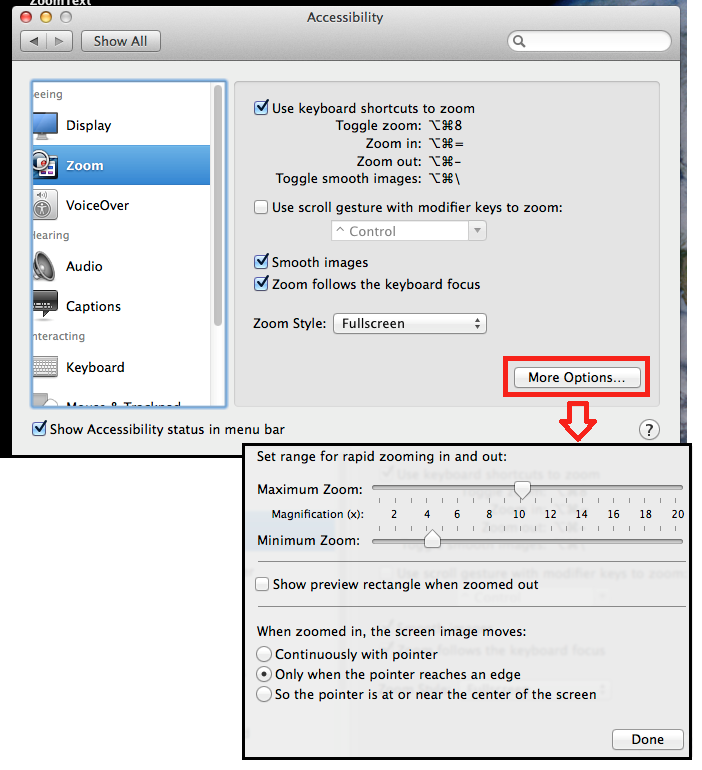
Students can make adjustments to Zoom if needed by using the keyboard shortcuts. Please note that some keyboard shortcuts may not work within the Lockdown Browser. If you have difficulty testing with the Lockdown Browser and Zoom, please contact your Account Manager at NWEA.
| Press these keys | To do this |
|---|
| Command + Option + 8 | Toggle Zoom on or off |
| Command + Option + = or - | Zoom in or out |
| Command + Option + F5 | Accessibility Options |
| Control + Option + 8 (requires setup) | Toggle color inversion on or off |
Alternative method: Use zoom features within an Internet browser
- Open an Internet browser (Safari or Chrome)
- Press Shift + Command + = zoom in, or Shift + Command + - to zoom out.
Color contrast options in Mac OS X:
- Select System Preferences > Accessibility.
- Select Display.
- Enable Invert Colors or Grayscale.
Some OS versions may not have the color contrast keyboard shortcut enabled by default. Follow the instructions below to add the keyboard shortcut for color contrast.
- Press Command + Option + F5
- Click Keyboard Settings.
- Select the Shortcuts tab.
- Select Accessibility in the left menu.
- Check the box to Invert Colors.
See also: