To test using ZoomText Mac:
- Start ZoomText.
- Adjust magnification level and other settings as needed.
- Start the assessment.
- If you have difficulty testing with the Lockdown Browser and ZoomText, please contact your Account Manager at NWEA.
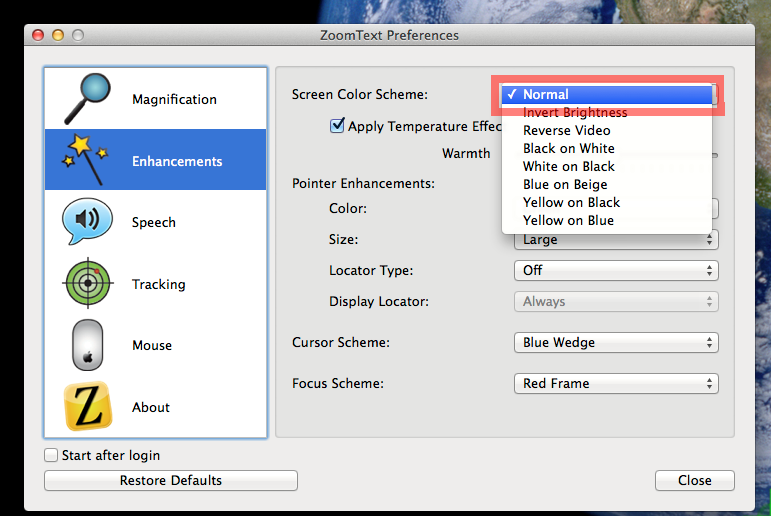
Below is an example of the ZoomText Mac user menu. There are multiple settings to alter how items such as the mouse, cursor, keyboard focus, text, etc. appear on the screen. ZoomText Mac has some similar features to ZoomText for Windows but they are not the same program. For a full list of features and settings please refer to the ZoomText Mac User Guide.
Keyboard shortcuts
There are many hotkeys and keyboard shortcuts available within ZoomText Mac. Below are examples of some of the available hotkeys. For a full list of keyboard shortcuts, please refer to the ZoomText Mac User Guide.
| Press these keys | To do this |
|---|
| Command + Option + Return | Open user menu |
| Command + Option + Up or Down arrow | Zoom in or out |
| Command + Option + Delete | Disable or enable ZoomText |
| Command + Option + \ | Toggle color contrast on or off |
See also: