How to turn on Zoom or adjust color contrast:
- Go to Settings > General > Accessibility.
- If needed, turn on Invert Colors or Grayscale.
- Click on Zoom.
- Turn Zoom on.
- Make other selections as needed.
- Launch the testing app.
The Zoom controller is highlighted in red in the picture below. This is a quick access menu for Zoom Settings and can be used to navigate the screen. Once you invoke the Zoom controller, it will remain visible on the screen until you dismiss it. You can access color contrast options in the controller menu or in Settings > General > Accessibility.
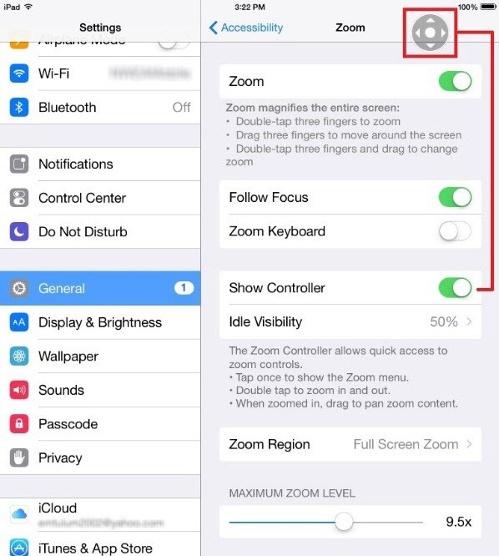
How to use Zoom
Below are the common gestures for using Zoom. Students who are not familiar with navigating the iPad with Zoom may need to practice, as they will need to use the 3-finger-drag gesture to move around the screen. Students must launch Zoom before they open the testing app.
| Use this gesture... | To do this |
|---|
| Double-tap 3 fingers | Turn Zoom on or off |
| Double-tap 3 fingers then drag up or down | Zoom in or out |
| Triple-tap 3 fingers | Show controller |
| Drag 3 fingers | Move around the screen |
Can students use the regular pinch-to-zoom gesture to zoom in and out?
Yes, all students can use the familiar pinch-to-zoom gesture in the MAP testing app. They do not need to enable the Zoom accessibility feature to use this gesture.
See also:
For more information, see Testing students with visual impairments in MAP Growth.