Follow these steps to prevent JAWS from repeating the word "clickable" throughout the test:
- Go to JAWS > Utilities > Setting Center.
- Select All Applications from the Application menu at the top.
- Expand Speech and Sounds Schemes.
- Select Modify Schemes.
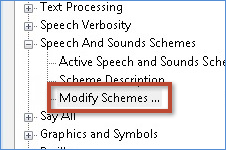
- Select Edit Selected Scheme.
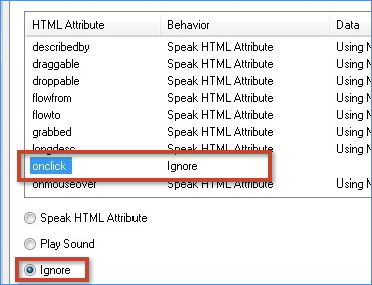
- Go to the HTML tab.
- Select the onclick attribute.
- Select the Ignore option.
- Click OK on each window until you have closed the JAWS Setting Center.
Note that your edited scheme will automatically be renamed to the name of your current speech and sound scheme with the word "modified" at the end. Different speech and sound schemes may have various effects on testing. If you experience issues, try returning to default settings or select the Classic speech and sound scheme.
After the test is completed, you can return to your unmodified speech and sound scheme.
Additional steps for braille:
If using a refreshable braille display, a similar issue may happen where the letters clk will appear at the end of each line of braille. Follow the steps below to resolve this issue:
- Go to JAWS > Utilities > Setting Center.
- Select Braille.
- Select Structured Mode.
- Select Advanced.
- Select HTML Attributes.
- Select onclick.
- Select Modify Braille HTML Representation.
- Delete clk.
- Click OK on each window until you have closed the JAWS Setting Center.
See also: