Starting in the 2026–27 school year, MAP Growth Secure Testing is delivered from the Google Admin console to install and configure the Secure Browser as a Chrome PWA in kiosk mode rather than the legacy Chrome app versions. The Progressive Web App (PWA) is built on Chrome’s latest standards, and schools should install and use the PWA, as the legacy Chrome app is no longer supported for MAP Growth testing. The legacy kiosk app will need to be uninstalled.
Install the PWA
To install the NWEA MAP Growth Secure Browser PWA:
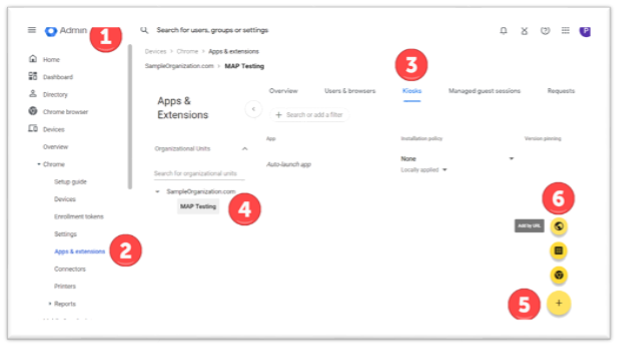
- Open the Google Admin console.
- In the navigation pane, select Devices > Chrome > Apps & Extensions.
- In the Apps & Extensions pane, select the Kiosks tab.
- From the Organizational Units list, select the organizational unit where the PWA will be installed.
- In the bottom right, select the [+] button to see a list of options.
- Select Add by URL. A permissions window appears. Select Agree to give the required permissions to the PWA.
 In the Add by URL alert window, enter: https://test.mapnwea.org/pwanopopup
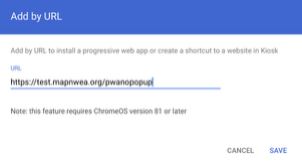
- Select Save.
-
A permissions window appears. Select Agree to give the required permissions to the PWA.
Configure the PWA and required extension
To configure the PWA and install the required extension:
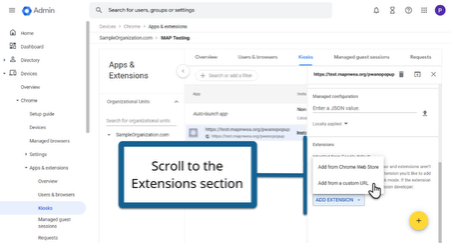
- Select the NWEA MAP Growth Secure Browser app from the list of installed apps. A pane containing the app's configuration options should appear. If the pane does not appear or you have closed it, select the app to reopen it.
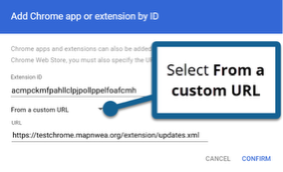
- In the Extension section, select Add Extension > Add from a custom URL
-
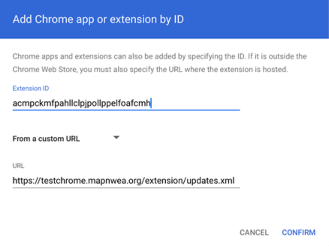
The Add Chrome app or extension by ID dialog box opens with From the Chrome Web Store selected by default. Click the drop-down arrow next to From the Chrome Web Store to display the available options, and then select From a custom URL.
- Enter the following in the fields:
- Extension ID: acmpckmfpahllclpjpollppelfoafcmh
- URL: https://testchrome.mapnwea.org/extension/updates.xml
- Select Confirm.
- Select Save in the upper right.
URL: https://testchrome.mapnwea.org/extension/updates.xml
Disable the Floating Accessibility Menu
Chrome kiosk apps can optionally display a menu with various accessibility features such as ChromeVox, magnifiers, and color contrast. When enabled, this menu appears in the bottom right corner of the screen. This menu is disabled by default. However, if it has become enabled, follow these steps to disable it:
- Open the Google Admin console.
- In the navigation pane, select Devices > Chrome > Settings.
- From the Organizational Units list, select the organizational unit to which the PWA is deployed.
- Select the Device settings tab.
- In the Kiosk accessibility section, select the Kiosk floating accessibility menu option.
- Set the Configuration menu to Do not show the floating accessibility menu in kiosk mode.
- Select Save.
How to Disable ChromeVox
ChromeVox is the built-in screen reader for Chrome OS. Students may have turned this feature on while using the Chromebook for instructional purposes. ChromeVox reads everything on the screen to the user, providing an accommodation that students should not have during testing. Visit http://www.chromevox.com/ for more information about ChromeVox.
To disable ChromeVox:
- Use the keyboard shotcut Ctrl + Alt + Z to toggle ChromeVox off.
OR
- Go to Settings.
- In the Accessibility section, under Text-to-Speech, set the screen reader to Off.
Uninstall the legacy Chrome app
- Open the Google Admin console.
- In the navigation pane, select Devices > Chrome > Apps & Extensions.
- In the Apps & Extensions pane, select the [Kiosks] tab.
- In the Organizational Units list, select the organizational unit where the legacy app is installed.
- In the search box above the list of apps, enter the following app ID: omkghcboodpimaoimdkmigofhjcpmpeb
6. Select the NWEA MAP Growth Secure Browser app with this ID from the list of apps.
7. In the pane on the right, under Installation policy, change the menu from Installed to Not Installed.
8. Select Save. The legacy MAP Growth Secure Browser app will be removed from the kiosk app.